Images & Attachments#
FoldNotes keeps images and files right inside your collection, stored in a protected folder and synced through iCloud alongside your notes. You add an image and FoldNotes drops a standard Markdown reference into your text:
A document or a recording gets a link rather than an image reference, because it isn't a picture:
Because both are plain Markdown and the files live in your collection, they travel with your notes everywhere — on every Mac and iOS device, and in any other Markdown app you open the folder with.
This page covers every way to get an image or a file into a note. For capturing printed text with the camera, see Scanning Text.
Mac, iPhone and iPad
Pictures and files appear in the editor on every platform, and every device can attach images, documents, audio and drawings, give them a size, hide one, and open any of them in Quick Look with a tap or a click.
One difference: on a Mac you can also open an attachment in the app that made it — Preview, Numbers, whatever owns the file — edit it there and have the change land back in your collection. On iPhone and iPad an attachment is shown in Quick Look rather than handed to another app to edit.
None of this changes what is written in your notes: sizes, hide and the references themselves are part of the file, so a note reads the same everywhere.
Pictures in the editor#
Mac, iPhone and iPad.
Your pictures appear in the editor as you write, drawn directly beneath the reference that names them. The Markdown stays visible above the picture and stays editable — nothing is hidden, and nothing has to be clicked to be changed.
Choosing a size#
Write the width into the reference itself. For an image, it goes in the alt text after a pipe:
For a document link, it goes on the end as a fragment:
An image accepts the fragment form too, which matters in one place: a table cell can't contain a |, so inside a table this is the only way to give a picture a size.
Write 300x200 to cap both dimensions. A size is a ceiling, not a stretch: a picture narrower than the space you allow it is left at its own size rather than blown up.
Use hide in place of a number to keep a file attached without showing it:
hide is a display instruction for the editor — the picture still appears in the Preview and in exports, because hiding it is about keeping your writing uncluttered, not about leaving it out of the finished thing.
Both are ordinary Markdown that other apps ignore harmlessly — | 300 is the same syntax Obsidian uses, and a fragment on a link is simply not followed.
The same on Mac, iPhone and iPad
Sizes and hide are part of the file, not of one app's settings — the same note read on any device reads them the same way, and they carry through the Preview, exports and bound documents identically. What differs between platforms is how you produce them: on a Mac you can type them or use the attachment popover, on iPhone and iPad you set them in the attachment's own editor.
Seeing what a reference points at#
A reference doesn't always show you its picture — you may have turned pictures off, given this one hide, or be looking at a table, where pictures never draw. Each platform has a way to look anyway:
| Platform | Gesture | Result |
|---|---|---|
| Mac | Hover a picture's reference or a [[link]] |
A preview card appears — in the editor and in the table editor, whether or not the picture is drawn |
| Mac | Double-click a drawn picture | Opens it in Quick Look |
| iPhone / iPad | Long-press a picture or its reference text | The attachment's options, including a preview. Works with pictures turned off, because it finds the reference itself |
| iPhone / iPad | Tap a drawn picture | Opens it in Quick Look |
| iPhone / iPad | Long-press a cell in the table editor | A preview of the picture or linked note the cell refers to, with Quick Look for a picture |
| iPad with a pointer | Hover a [[link]] |
The linked note's preview card, as on a Mac |
A picture in a table never draws in the grid, so these gestures are the way to check what a cell refers to without leaving the sheet.
Turning it off#
If you would rather write in plain text, turn off Settings ▸ Editor ▸ Display ▸ Show images and attachments in the editor. The editor then behaves exactly as it did before — and notes written either way are identical on disk, because this is a display choice and not a change to your files.
Individual sizes and hide are still honoured when the setting is on; turning the setting off hides everything regardless.
Images from the web#
A reference can point at a picture on the web —  —
and FoldNotes will draw it like any other, once you allow it. Web images
have their own switch — Settings ▸ Editor ▸ Privacy ▸ Load images from the web on
the Mac, Settings ▸ Behaviour ▸ Load Images from the Web on iPhone and
iPad — and it is off by default.
Why a separate switch: loading a web image sends a request to that site, which then sees your IP address and the time. And pasting from a web page brings across every image address the page contained — including any that was placed there only to be requested, and that looks like nothing in the Markdown. Leave it off unless you trust the source of what you copied.
Two things to know about how it behaves:
- It covers the preview as well as the editor. With it off, a web image in the preview shows a placeholder where the picture would be. In the editor, "Show images and attachments in the editor" (above) must also be on for a web image to draw.
- Opening a picture yourself always works. Right-click it (long-press on iPhone and iPad) and choose Open in Browser. The setting governs what FoldNotes fetches on its own, not what you choose to look at.
Exports are not affected
A PDF or a Word document fetches the picture and includes it. An HTML file, an email, or an EPUB carries the address instead, so whoever opens it fetches the picture from their own device.
Adding images and files on macOS#
Drag and drop#
Drag a file from Finder straight into the editor. FoldNotes copies it into your collection and inserts the reference at the point where you dropped it — an image reference for a picture, a link for anything else.
If FoldNotes won't accept a file, it says so and lists what it does accept, rather than silently doing nothing.
The Attachment Browser#
Open the Attachment Browser to see everything in your collection at a glance:
- Click the attachment button in the editor's bottom status bar, or
- Choose Window → Attachment Browser.
From the browser you can:
- Insert — select a file and click the insert button, or right-click and choose Insert into Note. The reference lands at your cursor in the active note.
- Import — click + to choose files, or drag files onto the browser window.
- Preview — select a file to see a larger preview. Documents and recordings show a preview of their contents rather than a generic icon.
Opening an attachment#
Click a document or recording in the editor to open Quick Look — the same fast look the space bar gives you in the Finder. From there, or by right-clicking the reference, you can:
- Open in the source app — edit the file in Word, Excel, Preview or whatever made it. Save there and the copy in your collection is updated, and syncs.
- Reveal in Finder — find the file itself inside your collection.
Editing a reference in place#
Right-click any image or file in the editor and choose Edit Attachment. You can rename it, change how it reads, and set its size without leaving the note.
The file comes first, above a divider, because renaming is usually why you opened it — a photo added from the camera arrives with a name nobody chose. Renaming updates every note that refers to the file, so nothing is left pointing at a name that no longer exists. Below the divider is everything about how it appears.
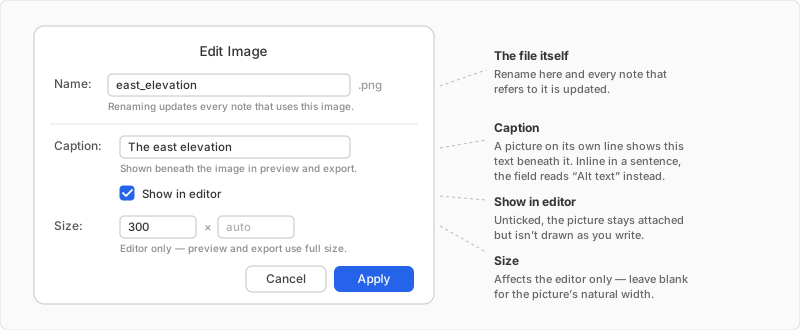
The second field is named for what it actually does, which differs by case:
| The reference | The field is called | Where it shows |
|---|---|---|
| A picture on its own line | Caption | Beneath the picture, in preview and export |
| A picture inline in a sentence | Alt text | Nowhere — it describes the picture for screen readers |
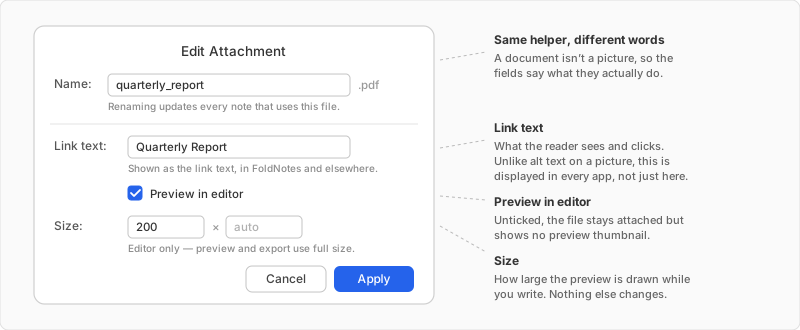
| A document or recording | Link text | As the link itself, in FoldNotes and every other app |
For a document the helper is titled Edit Attachment, and the same three rows read differently:
The file name can't always be edited
If the reference points at a file outside your collection — one written by another app, say — the name is shown in full but greyed out, and the helper tells you why. FoldNotes only renames files it owns.
Drawings#
On iPhone and iPad you can also draw straight into a note with Apple Pencil or a finger, and re-edit the drawing later with every stroke intact. Drawings are stored and managed exactly like the images described here — same folder, same browser, same renaming and reference counting. See Drawings.
Adding images and files on iOS & iPadOS#
iPhone and iPad attach images, documents, audio and drawings — the same collection, the same folder, the same references a Mac writes.
Tap the image button (the picture icon) in the keyboard toolbar above the keyboard. A card-style Add Image chooser appears — a medium sheet on iPhone, a tidy centred panel on iPad — offering up to four options:
| Option | What it does |
|---|---|
| Choose from Photos | Pick an existing image from your photo library. No permission prompt is needed — the picker runs separately from the app and only hands back the image you choose. |
| Take Photo | Open the camera and capture a new photo straight into the note. Shown only on devices with a camera. |
| Scan Text | Capture printed text with the camera using live text recognition. Shown only on supported devices. See Scanning Text. |
| Browse Collection Images | Reuse an image that's already in this collection, via the image browser. |
Tap an option and FoldNotes inserts the image (or scanned text) at your cursor.
Camera permission
The first time you choose Take Photo or Scan Text, iOS asks for camera access. This prompt comes from the system, not FoldNotes — tap Allow to continue. Choose from Photos never needs this.
Drag and drop#
On iPad — and on iPhone using the multitasking drag gesture — you can drag an image from the Photos or Files app and drop it directly into the editor. FoldNotes copies the image into your collection and inserts the reference at the drop point. Drop several at once and they stack in order.
Documents and audio#
Open the Attachment Browser and tap + to add a PDF, a spreadsheet, a recording — anything in the supported formats — from Files or iCloud Drive. The file is copied into your collection, exactly as it would be on a Mac, and the reference is written the same way.
Opening an attachment#
Tap any attachment in the editor, or in the Attachment Browser, and it opens in Quick Look — read the PDF, play the recording, page through the slides.
A Mac can go one step further and hand the file to the app that made it, so you can edit it and have the change land back in your collection. On iPhone and iPad, an attachment is for reading rather than editing in place.
Tapping a drawing opens the drawing canvas instead of Quick Look, with every stroke still editable — Quick Look would only show the flattened picture, which is the half you cannot change.
Supported formats and size#
| Kind | Formats |
|---|---|
| Images | PNG, JPEG, GIF, HEIC, HEIF, WebP, TIFF, SVG |
| Documents | PDF · Word, Excel, PowerPoint · Pages, Numbers, Keynote · OpenDocument · RTF, plain text, CSV, EPUB |
| Audio | M4A, MP3, WAV, AAC, AIFF, QuickTime Audio, Core Audio |
Each file is limited to 10 MB. That is room for a long document or a five-minute voice memo, while keeping any single file from coming to dominate everything you sync.
Video is deliberately not supported. A short screen recording runs to many times the limit, and a collection that syncs to every device is the wrong place for it. Link to it instead.
The limit changed in Build 49
Images were previously accepted up to 20 MB. The limit is now 10 MB for everything. Images already in your collection are unaffected — the limit applies when adding something new.
If a file with the same name already exists, FoldNotes adds a short unique prefix to avoid collisions — for example a3f1b2c4_photo.png.
Apple's iWork formats are accepted because modern Pages, Numbers and Keynote save as a single file. If you have chosen Save as package or you're opening an older document, it is a folder rather than a file, and FoldNotes will decline it — re-save it as a single file first.
In preview, export and bind#
Everything you attach travels beyond the editor, but not identically:
- Images are rendered as pictures wherever the note is rendered — preview, PDF, Word, EPUB and bind.
- Documents and audio appear as a small labelled chip naming the file. They cannot be embedded in a PDF or a Word file, so the chip tells the reader what was attached rather than pretending the file came along.
- TextBundle export is the exception: a TextBundle is a container, so the actual files travel inside it and the links are rewritten to match.
Give a picture a blank line#
This is the one rule worth knowing, because you cannot guess it from the result.
For an image to become a figure with a caption, its reference must sit in a paragraph of its own — with a blank line above it:
Written tight against the paragraph above, it is treated as part of that sentence and stays inline, with no caption:
The same applies to a document link becoming a chip. If a caption or a chip isn't appearing, a missing blank line is almost always why.
The caption text comes from the alt text — the words inside [ ]. A picture with no description simply appears without a caption, and without the space one would take up.
Managing images and files#
All of this happens in the Attachment Browser (macOS) or the Browse Collection Images view (iOS).
Renaming#
Right-click (macOS) or long-press (iOS) a file and choose Rename. You edit the base filename; the extension is preserved automatically and can't be changed. FoldNotes updates every note that references the image so no links break, and Notes List thumbnails refresh immediately.
Reference counting#
The browser scans all your notes and shows how many times each file is used — links to documents count exactly as image references do. Switch to the Orphaned filter to find files no longer referenced by any note, handy for tidying up.
Deleting#
Select one or more images and choose Delete. FoldNotes tells you how many notes reference each file first:
- If an image is orphaned (zero references), you can delete it safely from any view.
- If it's still referenced, the delete control stays disabled and shows the reference count, so you don't accidentally leave broken links behind.
Reference counts update live as you edit — remove the last reference to an image and it becomes deletable straight away, without reopening the browser.
Deleting only affects FoldNotes
When you add an image, FoldNotes stores its own copy inside your collection — it doesn't move or link back to the original. Deleting an image here removes only that copy from your collection; the original stays put in your Photos library (or wherever it came from). Likewise, deleting a photo from Photos doesn't affect the copy FoldNotes already saved.
Filename rules#
Filenames are sanitised on import: spaces become underscores, and characters that break Markdown or are illegal in filenames (: / \ ( )) are stripped. Periods are allowed — the extension is always tracked separately.
How storage works#
Every file you add is copied into a hidden .attachments/ folder inside your collection and syncs via iCloud with your notes, so it's available on all your devices — independent of the original in Photos or Finder. Images, documents, recordings and drawings all live there together.
Tip
The .attachments/ folder is hidden on purpose. Renaming or moving files inside it by hand can break the references in your notes — use the Attachment Browser, or Edit Attachment in the editor, so FoldNotes can keep every note in sync.