Inspector#
The Inspector is a sidebar panel on the right side of the editor. Toggle it from the toolbar button on macOS, or swipe left on the editor on iOS.
Tabs#
The Inspector has five tabs, selected via a segmented control at the top:
Graph#
Shows a local link graph centred on the current note. Connected notes (via wiki-links) appear as nodes. Click a node to navigate to that note.
Outline#
A table of contents generated from the note's headings. Click any heading to jump to it. Useful for navigating long documents.
The arrow beside a heading folds or unfolds that section in the note itself.
On the Mac:
- Headings in colour. Each heading takes the colour the editor gives its level, so the outline reads like your note. Turn on Colour headings by level in Settings for a colour per level.
- The outline follows your folds. Fold a section, from the outline or in the editor, and the headings inside it are tucked away until you unfold it. A long document's outline stays as short as you fold it.
- Option-click an arrow to fold or unfold the whole section at once, every level inside it included.
- Preview a section. Rest the pointer on a heading for a moment and a card opens beside the Inspector, showing the note at that heading with the heading highlighted. Move up and down the outline and the card follows. It's the quickest way to see what a folded section holds without opening it.
- Go anywhere from the card. Move the pointer into the card and click any paragraph: the editor goes straight to it, opening only the folds that hide it. Edit → Undo folds them again.
When the editor is hoisted on a heading, the outline narrows to just the hoisted subtree — so it doubles as a chapter-level mini-navigator while you work inside one section. Learn more about Hoist →
Platform availability
Outline is available on macOS, on iPad (both orientations), and on iPhone in landscape. On iPhone in portrait the Inspector hides the Outline tab — there isn't room to show both the outline and the editor at the same time, and a tap on a heading wouldn't have a visible editor to jump to. Rotate the iPhone to landscape to access it.
Words#
Displays writing statistics:
- Word count
- Character count
- Sentence count
- Paragraph count
- Estimated reading time
- Key dates (created, modified)
Properties#
Shows the note's front matter properties. You can view and edit custom properties (like status, category, etc.) that you've added to the note.
Tasks#
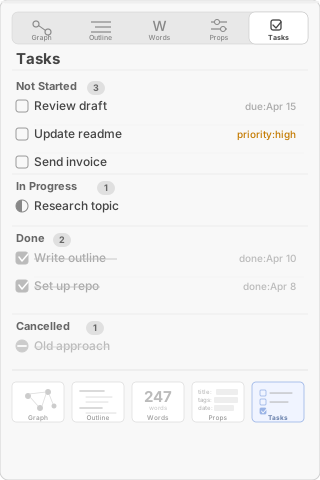
Lists all tasks in the current note, grouped by status. Each task shows its text, due date, and priority. Click a task to jump to its location in the editor.
Collection Graph#
For a full collection-wide graph (not just the current note), use Cmd+Shift+G to open the standalone Collection Graph window. This shows all notes and their wiki-link connections as an interactive force-directed graph.