Search#
FoldNotes provides multiple ways to find content — from system-wide Spotlight search to in-app filtering with qualifier syntax. Search is one of FoldNotes' strongest features: your entire collection is fully indexed and instantly searchable.
Spotlight Search (System-Wide)#
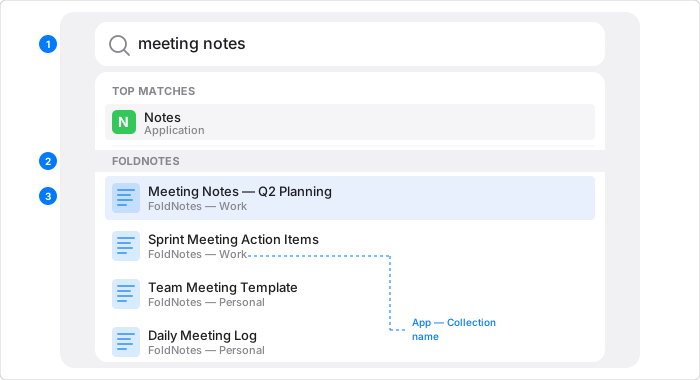
FoldNotes indexes every note into macOS and iOS Spotlight. This means you can find your notes without even opening the app — from the Home Screen, Lock Screen, or the Mac desktop.
What's Indexed#
Spotlight indexes the full text of every note, not just the title. It also stores metadata so results are rich and useful:
- Title and full body text (every word is searchable)
- Tags (shown in Spotlight results as keywords)
- Task counts (active, done, overdue)
- Favourite status
- Word count and dates (created, modified)
- Collection name (shown as the subtitle)
Two things are left out: your <!-- comments --> while Keep Comments Private is on, and the sections FoldNotes generates in daily notes — the overdue list and the activity summary, between <!--fn:noindex--> markers. Those are copies of what's in your other notes, so they're never indexed. See Daily Notes.
How to Search on macOS#
- Open Spotlight with Cmd+Space (or the menu bar icon)
- Type your search query — this searches across all apps, so you may see other results first
- Wait a moment — after a second or two, a FoldNotes category header appears in the results list. This is Spotlight grouping your notes under the app name
- Click any result to open it directly in FoldNotes
The subtitle tells you which collection
Each Spotlight result shows FoldNotes — Collection Name underneath the note title. If you have multiple collections (e.g. "Work" and "Personal"), this tells you which collection the note belongs to. If your collection is named "FoldNotes", you'll see "FoldNotes — FoldNotes" — the first is the app, the second is your collection name.
How to Search on iOS/iPadOS#
- Swipe down from the Home Screen or pull down from the Lock Screen to open Search
- Type your query
- FoldNotes results appear under a FoldNotes section alongside results from other apps
- Tap a result to open it in FoldNotes
Tips for Spotlight#
- Full-text search works — type a phrase from the middle of a note and Spotlight will find it
- Tag names are keywords — if you tag notes with
#project, searching "project" will surface those notes - Spotlight learns from you — notes you open frequently rank higher over time
- Works offline — the Spotlight index is local, so searches work without an internet connection
- Multi-collection — on macOS, results from all registered collections appear together, each labelled with its collection name
Search All Notes (In-App)#
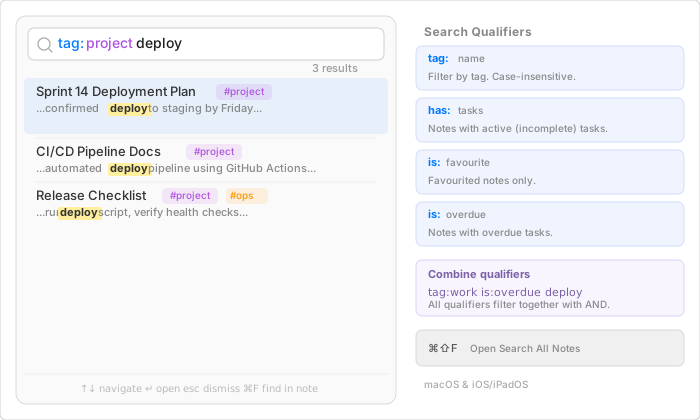
Press Cmd+Shift+F (macOS) or tap the search icon in the toolbar (iOS/iPadOS) to open the global search panel. This is the most powerful search within FoldNotes — it combines full-text search with qualifier syntax for targeted filtering.
What's available on each platform
- iPhone — full-text + qualifier search (Spotlight-style).
- iPad — the above, plus the regex toggle (
*) and saved-search library (bookmark button). - macOS — all of the above, plus External Files search (a scope control and folder filter) when the default collection is active.
The search field#
The field row carries three controls: the search box itself, the * regex toggle (switch the box from qualifier syntax to a regular-expression pattern), and the bookmark button (your saved-search library). On macOS, when the default collection has External Files folders, a scope control and a folder filter appear just below — see Searching External Files.
Basic Search#
Type any text to search across all note titles and content. Results appear instantly with highlighted context snippets showing where the match was found.
The generated sections of daily notes — the overdue list and the activity summary, between <!--fn:noindex--> markers — are never searched, so a task turns up in the note it lives in, not in every daily note that listed it. See Daily Notes.
On macOS, the search panel reads the full .md file to provide rich context — you'll see the actual paragraph containing your match, not just a truncated preview.
Qualifier Syntax#
Prefix special keywords to narrow your search. Qualifiers can be combined with each other and with text:
| Qualifier | Example | Description |
|---|---|---|
tag: |
tag:project |
Notes with a specific tag (case-insensitive) |
has:tasks |
has:tasks |
Notes containing active (incomplete) tasks |
is:favourite |
is:favourite |
Favourited notes only (is:favorite also works) |
is:overdue |
is:overdue |
Notes with overdue tasks |
Combining Qualifiers#
All qualifiers filter together with AND logic. Add free text to further narrow results:
This finds notes tagged "work" that have overdue tasks and contain the word "deploy".
Qualifier-Only Searches#
You don't need to include text at all. Type just a qualifier to browse matching notes:
Navigation#
| Key | Action |
|---|---|
| ↑ / ↓ | Navigate results |
| Return | Open selected note |
| Escape | Dismiss search |
| Cmd+F | Find the search text within the opened note |
On iOS with a hardware keyboard, the same shortcuts apply.
Regex Search#
Available on macOS and iPad
The regex toggle and saved-search library are available on macOS and iPadOS. iPhone keeps the simpler Spotlight-style search — regex typing on a soft keyboard is painful and the smaller screen isn't the right place for it.
The Search All Notes panel has an * toggle that switches the search field from qualifier syntax to a raw regular-expression pattern. When the toggle is on, the field is interpreted as an NSRegularExpression pattern, run against every note's body in the active collection — except the generated sections of daily notes (between <!--fn:noindex--> markers), which no search looks at.
Regex search is read-only. There is no find-and-replace. This is deliberate — one wrong character in a regex replace combined with iCloud sync would corrupt every match in seconds. If you need to mutate content, the search finds it and you edit each match by hand with full undo intact.
Saved Library#
Next to the regex toggle, a bookmark button opens a library of saved patterns scoped to the active collection. Hard-won regexes get a name and stay one click away.
To save a pattern: type it in the search field with regex mode on, then click the bookmark button — Save Current Pattern… sits at the top of the library, above your saved entries. (Saving is not offered as a popup while you type; the library is where it lives.)
- Save Current Pattern… is available when the field holds a regex that isn't already in your library. If the pattern is already saved, the button reads Already Saved and the matching entry is selected in the list below, so you can see where it went.
- Double-click (or tap) a saved entry to load it into the search field and run it
- Right-click (macOS) or swipe (iPad) for Rename and Delete
Patterns sync across devices: a regex you save on Mac shows up in the iPad library automatically via iCloud. The on-disk format is <collection-root>/.searches/<uuid>.json — readable in any text editor if you want to inspect or hand-edit a pattern.
Examples to Save#
These are good starting points. All use the (?m) flag so ^ matches the start of each line.
Tasks#
| Purpose | Pattern |
|---|---|
| Cancelled tasks | (?m)^\s*-\s\[-\]\s.* |
| Done tasks | (?m)^\s*-\s\[x\]\s.* |
| In-progress tasks | (?m)^\s*-\s\[/\]\s.* |
| Not-started tasks (any) | (?m)^\s*-\s\[ \]\s.* |
| High-priority, not started | (?m)^\s*-\s\[ \]\s.*\bpriority:high\b.* |
| Not-started tasks without a priority set | (?m)^\s*-\s\[ \]\s(?!.*priority:).* |
| Tasks with any due date | (?m)^\s*-\s\[[ /]\]\s.*\bdue:20\d{2}-\d{2}-\d{2}\b.* |
The negative lookahead (?!.*priority:) finds tasks missing something — that's a kind of search Spotlight can't express.
Email Addresses and Other Data#
| Purpose | Pattern |
|---|---|
| Email addresses | \b[A-Za-z0-9._%+-]+@[A-Za-z0-9.-]+\.[A-Za-z]{2,}\b |
| URLs | \bhttps?://[^\s<>")]+ |
| Phone numbers (loose, Australian-friendly) | \b\+?\d[\d \-()]{7,}\d\b |
| Dollar amounts | \$\s?\d{1,3}(?:,\d{3})*(?:\.\d+)?\b |
Editing Hygiene#
These keep a notebook tidy. Run them once a week and you'll find drafts that never got finished, sections that never got filled, and FIXMEs you forgot about.
| Purpose | Pattern |
|---|---|
| Empty headings (heading with no text) | (?m)^#{1,6}\s*$ |
| Inline TODO / FIXME / HACK markers | \b(TODO|FIXME|XXX|HACK)\b[: ].* |
Backlinks (find every [[Note Title]]) |
\[\[([^\]\n]+)\]\] |
Tags (including nested #parent/child) |
\b#[a-zA-Z][\w/]*\b |
Tips#
- Compile errors are silent. If your pattern doesn't compile, the result count goes red with the error message and the result list is empty. Nothing is destroyed.
- Case is insensitive by default. All saved patterns assume case-insensitive matching.
- Highlights match-only. The result snippet bolds the literal matched text, not the whole line — useful for verifying your pattern is doing what you think.
- Match limit per note. The snippet shows up to eight matches per note for performance; the note itself contains every match.
Searching External Files (macOS only)#
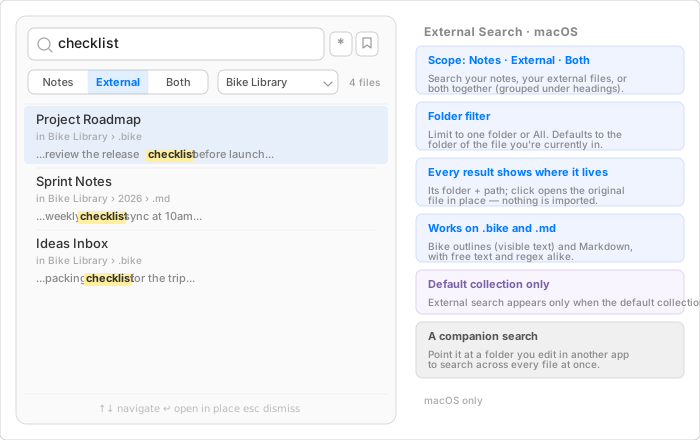
On the Mac, FoldNotes can search inside your External Files folders — the directories of .md, .markdown, and .bike files you point FoldNotes at and edit in place. This turns FoldNotes into a fast search‑across‑all‑your‑files tool for documents it doesn't own.
Default collection only#
External Files — and therefore external search — exist only while your default FoldNotes collection is active. In any other collection there are no external folders, so the scope control doesn't appear and Search All Notes covers that collection's notes only. (External Files are a property of the default collection by design — see External Files.)
The scope control#
When the default collection has external folders, the Search All Notes panel (Cmd+Shift+F) gains a scope control:
| Scope | Searches |
|---|---|
| Notes | Your collection's notes (the default). |
| External | Only your external files. |
| Both | Notes and external files together, grouped under headings. |
It defaults to External when you're already editing an external file, otherwise Notes — switch anytime. Every external result shows where it lives (its folder and path) and opens in place when you click it; nothing is imported.
The folder filter#
With more than one external folder registered, a dropdown lets you limit the search to one folder — say, just your Bike library — or All External Files. It defaults to the folder of the file you're currently in, so opening search while in a library searches that library first.
What it searches#
- Markdown (
.md,.markdown) — full text. - Bike outlines (
.bike,.biked) — the visible outline text, not the raw file, so you find what you'd actually read. Covered in full under Searching Your Outlines. - Free text and regex both work, exactly as for notes — including your saved‑search library. The note‑only qualifiers (
tag:/has:/is:) don't apply to external files, so they drop out of the placeholder in External scope.
A search layer over a folder you write in elsewhere
External search makes FoldNotes a fast search‑across‑all‑your‑files layer over a folder you mainly edit in another app. If that app works one document at a time and you'd like full‑text — or regex — search across the whole folder, point External Files at it and search away, while continuing to write where you always did.
On iPhone & iPad
On iOS, external search covers your Bike folder — see Searching Your Outlines. From version 1.2.0, Search All Notes gains a scope switch like the Mac's: search your notes, your Bike files, or both.
Sidebar Filter#
The search field at the top of the note list filters notes in real-time. It searches both note titles and the first ~200 characters of content.
The sidebar filter is intentionally fast and lightweight — it searches the local cache rather than reading files from disk. Use it when you're browsing and want to quickly narrow the visible list. For deep full-text search, use Search All Notes (Cmd+Shift+F).
Find in Note#
Press Cmd+F to search within the current note. Use Cmd+G for next match and Cmd+Shift+G for previous.
Find works across folded sections too — if a match is inside a collapsed section, FoldNotes will automatically unfold it to reveal the result.
Jump from global search
When you open a note from Search All Notes, FoldNotes carries the search text forward. Press Cmd+F immediately to highlight all occurrences of that term within the note.
Command Palette#
For inserting formatting, links, dates, and task metadata directly from the editor, see Editor Commands. The command palette is opened with / and isn't a search tool per se, but it shares the same "type to filter" muscle memory.
CLI Search (macOS)#
The command line tool provides full-text search with advanced options:
fn search "meeting agenda"           # Literal search
fn search "TODO" --context 2         # Show surrounding lines
fn search "\\d{4}" --regex           # Regular expression
fn search "deploy" --tag project     # Filter by tag
fn search "ideas" --titles-only      # Titles only (fast)
The CLI reads .md files directly, so it always searches the latest on-disk content. For metadata queries (tasks, tags, backlinks), the CLI reads the app's SwiftData cache. If it can't (see Access & Speed on macOS 27), it builds the same index from your note files.
Keep FoldNotes running for best results
The CLI reads from the app's local cache for metadata queries. FoldNotes updates this cache in real time as iCloud sync events arrive. For the most accurate results, keep the app running on your Mac while using the CLI.
Comparison#
| Method | Scope | Speed | Full Text | Qualifiers | Opens FoldNotes |
|---|---|---|---|---|---|
| Spotlight | System-wide | Instant | Yes | No | Yes (on click/tap) |
| Search All Notes | Current collection | Instant | Yes | Yes | Already open |
| Search External Files (macOS) | External folders (default collection) | Fast | Yes | No (regex yes) | Opens in place |
| Sidebar Filter | Note list | Instant | Title + 200 chars | No | Already open |
| Find in Note | Current note | Instant | Yes | No | Already open |
CLI fn search |
Any collection | Fast | Yes | --tag, --regex |
Optional (fn open) |