Quick Start#
FoldNotes is a native app for writing and organising Markdown notes on macOS and iOS. Your notes live as plain .md files in iCloud Drive, so they sync across devices and are always accessible outside the app.
Installation#
macOS#
Download FoldNotes from foldnotes.io.
iOS / iPadOS#
Download the FoldNotes companion app from the App Store.
On first launch, FoldNotes creates a collection folder in your iCloud Drive:
If you're not signed in to iCloud, the collection is created locally1 at ~/Documents/FoldNotes/.
First Launch#
When you open FoldNotes for the first time:
- The main window appears with a sidebar (note list) and an editor
- Click New Note (Cmd+N) to create your first note
- Start typing — FoldNotes auto-saves continuously
The Interface — Mac#
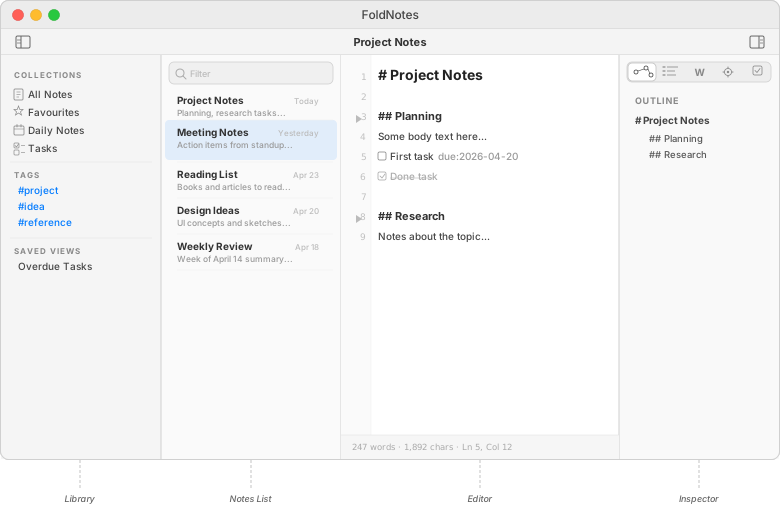
The main window has four areas:
- Library (left) — collections, tags, saved views, and daily notes calendar
- Notes List (centre-left) — your note list with search, filters, and sorting
- Editor (centre) — the Markdown editor with fold arrows and line numbers. Your Markdown stays in view as you write, styled; the Preview shows it fully rendered
- Inspector (right) — outline, word count, properties, and tasks
The toolbar shows the note title (click to rename), status indicators, and quick actions.
The status bar at the bottom shows word count, character count, and cursor position. Toggle it with Cmd+/.
Showing and Hiding the Panes#
Each area beside the editor can be put away, so your note can have the window to itself:
| Area | Toolbar button | Menu | Keys |
|---|---|---|---|
| Library | Sidebar | View → Show/Hide Tag List | Ctrl+Cmd+1 |
| Notes List | List | View → Show/Hide Note List | Ctrl+Cmd+2 |
| Inspector | Inspector | View → Toggle Inspector | Cmd+Option+I |
On a trackpad, swipe right with two fingers on your note to bring back the Notes List, then the Library; swipe left to put them away again, then to show the Inspector. On the preview beside the editor, swipe left to show the Inspector and right to put it away.
With the Toolbar Hidden#
View → Hide Toolbar (Cmd+Option+T) gives your note the whole window. A small List button stays beside the window's close, minimise and zoom buttons, so the Notes List is always one click away, and while the Inspector is open a button at its top closes it. View → Show Toolbar, or Cmd+Option+T again, brings the toolbar back.
The Interface — iPhone#
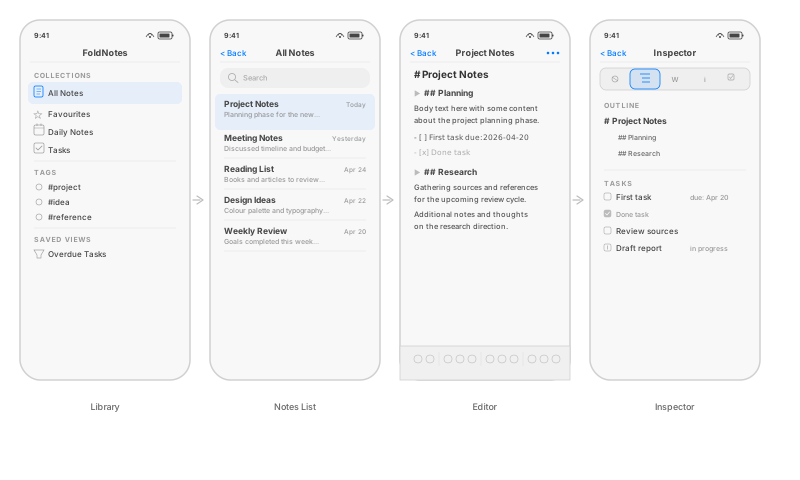
On iPhone, the four areas are separate full-screen views. Navigate between them by tapping through or swiping back.
The Interface — iPad#
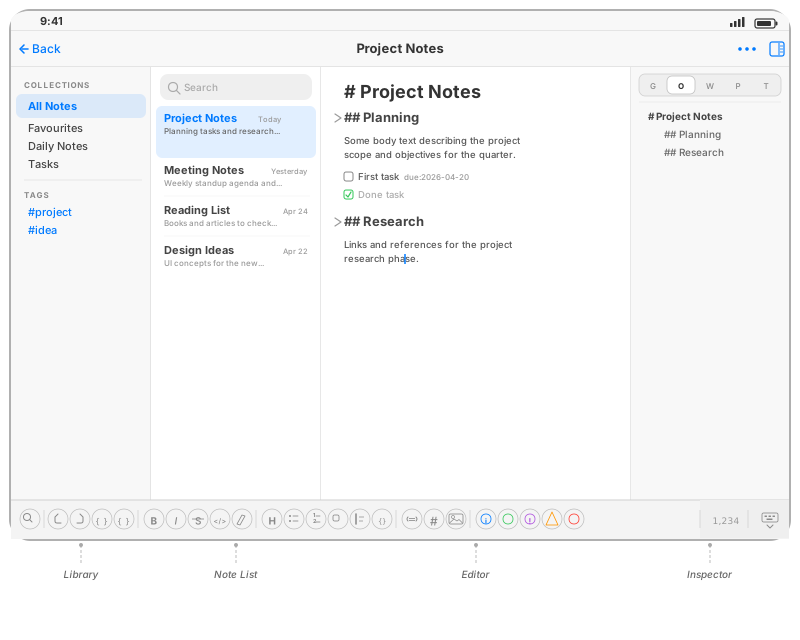
On iPad, all four panes can be visible simultaneously. Swipe right to reveal the Library and Notes List, swipe left on the editor to reveal the Inspector. The keyboard toolbar at the bottom provides quick access to all formatting actions. See iOS Companion App for full details.
What's Next#
- Creating Notes — how to create, name, and organise notes
- Your Collection — understand the folder structure
- Daily Notes — set up daily journaling
- iOS Companion App — FoldNotes on iPhone and iPad
-
Notes stored locally won't automatically sync. Sign in to iCloud Drive to enable sync for new notes. If you have existing local notes, you will have to copy them. ↩